Home
Home  Navigation


Minecraft, the wildly popular sandbox game, is accessible on a variety of devices, including Chromebooks. Given the unique nature of Chrome OS, many users are curious about whether Minecraft can run on Chromebooks. The answer is a resounding yes! In this comprehensive guide, we will delve into the installation process and offer tips to enhance your gaming experience.
Table of Contents
- General Information About Minecraft on a Chromebook
- Enabling Developer Mode
- Installing Minecraft on Chromebook
- Running the Game
- How to Play Minecraft on a Chromebook with Low Specs
- Enhancing Performance on Chrome OS
General Information About Minecraft on a Chromebook
To ensure a smooth gameplay experience on your Chromebook, your device should meet the following minimum system requirements:
- System Architecture: 64-bit (x86_64, arm64-v8a)
- Processor: AMD A4-9120C, Intel Celeron N4000, Intel 3865U, Intel i3-7130U, Intel m3-8100Y, Mediatek Kompanio 500 (MT8183), Qualcomm SC7180 or better
- RAM: 4 GB
- Storage: At least 1 GB of free space
These are the bare minimums to run Minecraft on a Chromebook. If you experience lag or stuttering, don't worry—we'll provide guidance later in this article to help optimize your setup. Let's now explore the installation process. You have the option to install the Bedrock Edition directly from the Google Play Store, which is a straightforward method. Just open the store, search for Minecraft, and navigate to its page. Be aware that it will cost you $20. However, if you already own the Android version priced at $7, you'll only need to pay an additional $13 to upgrade.
This method suits those who prefer a hassle-free installation. However, if the Bedrock Edition isn't your cup of tea, there's good news: Chrome OS, being based on Linux, allows you to install the classic Minecraft version. This process involves more detailed steps, as Chrome OS differs significantly from Windows, and some coding may be required. We've prepared a step-by-step guide to help you install Minecraft on your Chromebook in just half an hour.
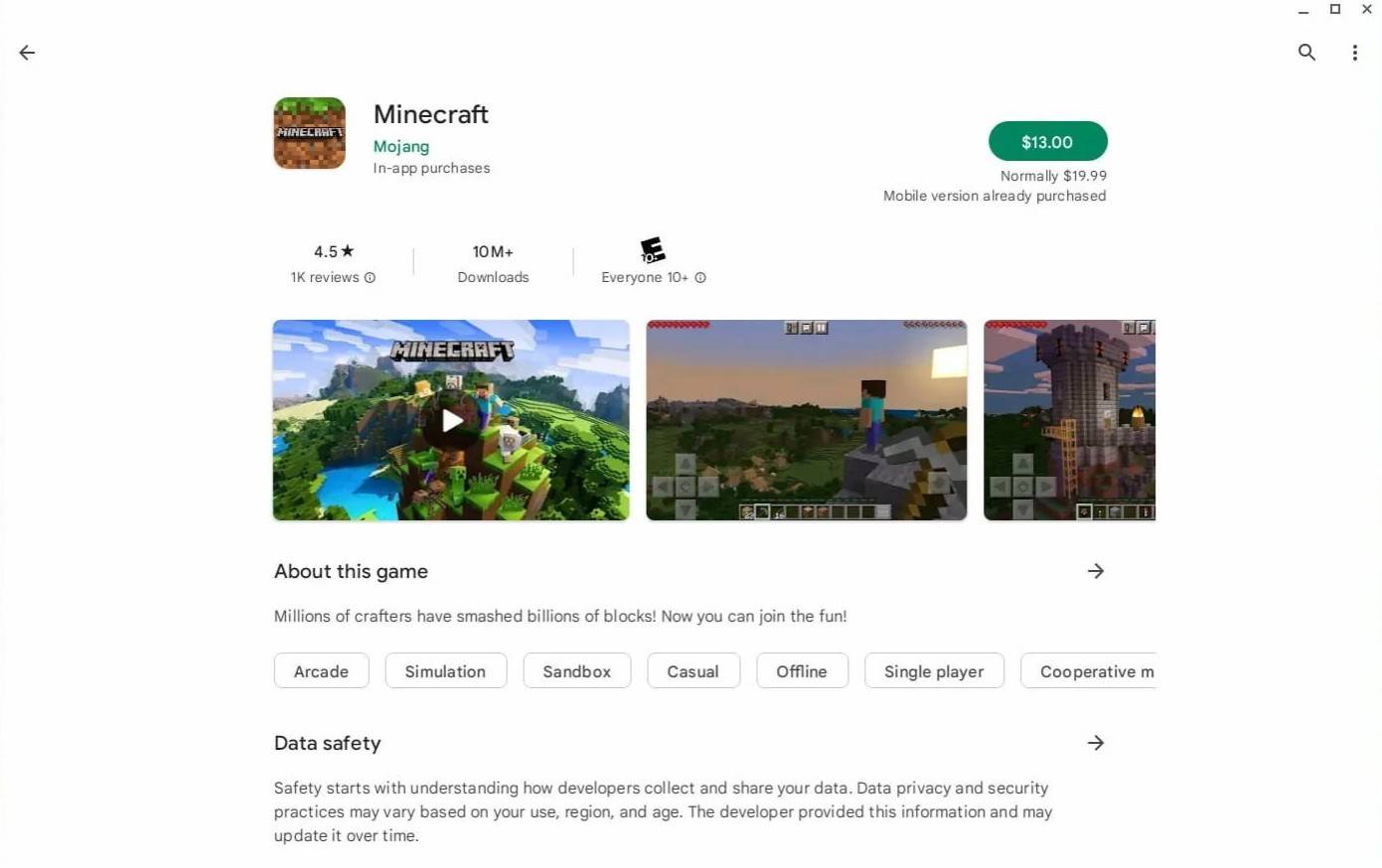
Image: aboutchromebooks.com
Enabling Developer Mode
To begin, you must enable Developer Mode on your Chromebook to access the full potential of Chrome OS. Navigate to the settings menu, similar to the "Start" menu on other systems, and find the "Developers" section. Here, enable the "Linux development environment" option. Follow the on-screen instructions until the process completes, and you'll be introduced to the Terminal—a command-line interface akin to Windows' command prompt, where you'll perform further configurations.

Image: youtube.com
Installing Minecraft on Chromebook
With Developer Mode activated, you're now ready to install Minecraft. This process involves using the Terminal to set up the necessary environment for the game. We'll guide you through each step to ensure a successful installation.

Image: youtube.com
 Latest Articles









 Latest Games